If you’ve blended data sources before in Tableau, you’ve probably encountered a situation where an asterisk appears in one of your columns.
A common reason this occurs is that each mark in the primary data source corresponds to more than one matching value in the secondary source.
For example, consider the tables below.
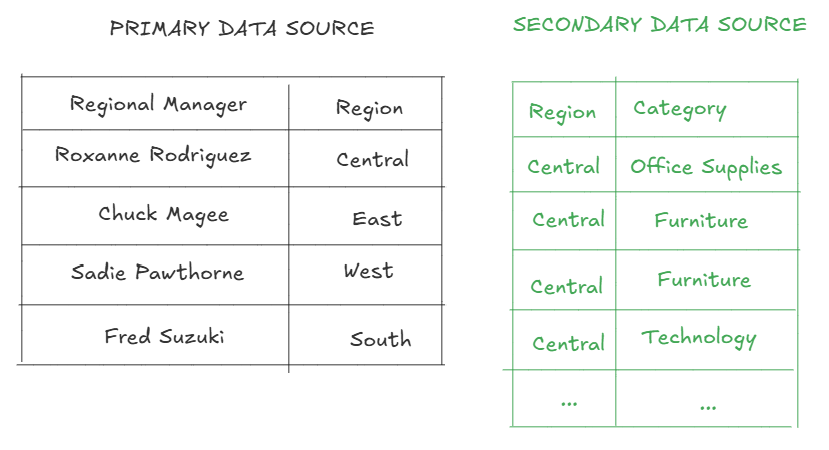
Suppose I am blending the tables on “region.”
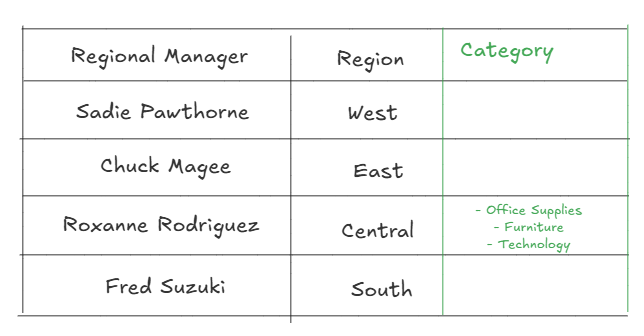
Each region in the primary data source corresponds to multiple categories in the secondary data sources. Central could correspond to Office Supplies, Furniture, or Technology.
Therefore, when I try to create a table like this, it results in an asterisk in the category column, because it’s trying to fit multiple values into one row.
How can you get around this?
You can try finding a field from your primary data source that is more granular, and adding that to the view.
However, often times you will have to switch your primary and secondary data sources, so that your primary data source is the more granular one.
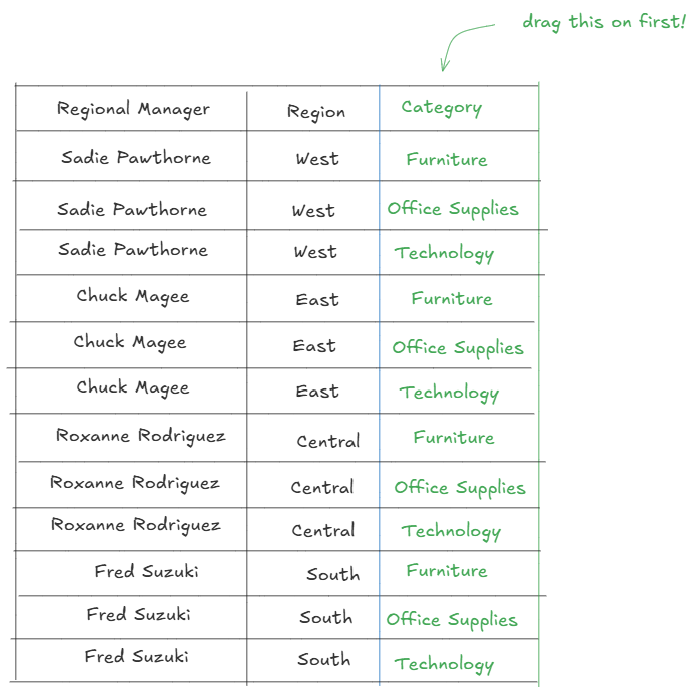
To do this, clear your sheet, and drag in a field from whatever you want to be your primary data source first. In this case, I would drag on the table with category information first, since it’s the more granular table.
(Note that if you try switching your primary data source by going to Data → Edit Blend Relationships and updating what is listed there as primary/secondary, it won’t actually change your current view. You’ll have to clear your sheet anyway and start over.)
Since you’ll now be starting with a more granular/detailed table as your primary data source, and a less granular table as your secondary, it’s not trying to fit multiple values into one row of data.