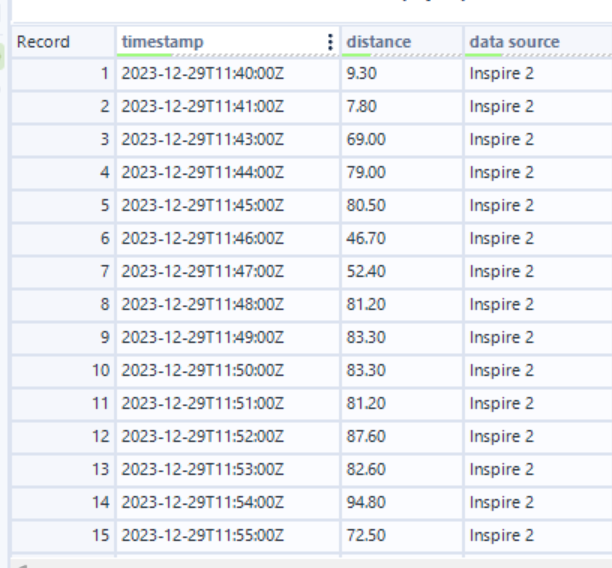
I’m currently working on gym dashboard, which combines data from multiple sources so I can directly compare elements like my diet and sleep to my gym performance.
However one of the first issues I noticed was that a large amount of my Google Health data is stored in multiple different CSVs.
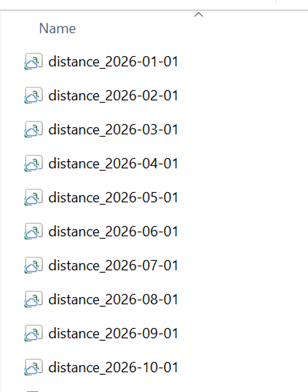
For example, see below my daily distance walked data from my FitBit, which has been stored in a separate sheet for each month.
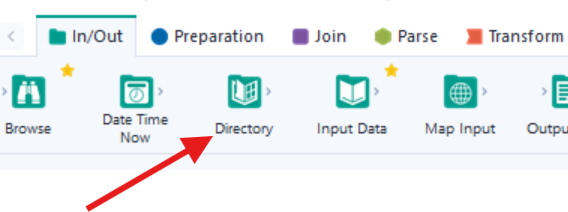
A great way we can make use of all these files is with the directories tool in Alteryx!
The Directory tool can be found in the In/Out tab of the Tool Palette
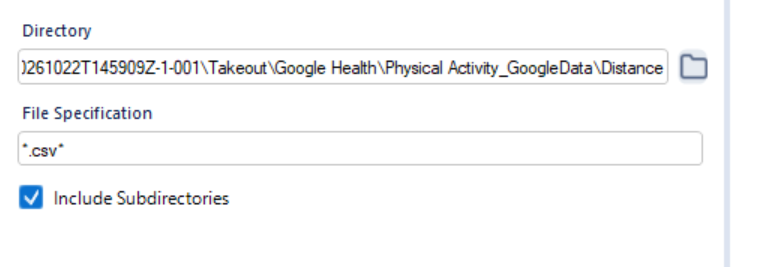
After dragging it into the workflow canvas, you can select the file location of your folder. After selecting your folder, you need to set the File Specification to the same file type as the those your want to import. In this case *.csv*.
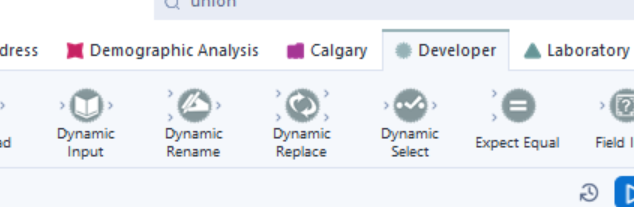
Now we have our directory imported we need to use the Dynamic Input tool found in the Developer tab, in order to read the contents of each CSV file listed by the Directory tool and combine them into a single dataset.
Hit edit on Input Data Source Template and select one the files from the directory folder. This will act as a template, telling Alteryx which columns and data types to expect, so it can then read every other file in the folder the same way.
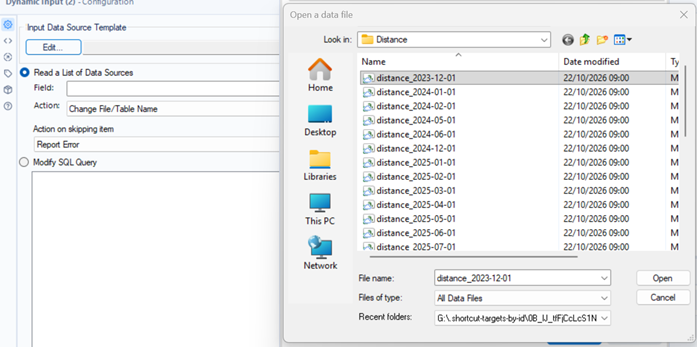
Following this select Field: FullPath and Action: Change Entire File Path.

Now we have all the data we need Unioned into one table.