


Think of Alteryx as a cheat code for spatial data.
While most tools can only visualize dots on a map, Alteryx lets you build and reshape the actual geography. It treats spatial objects like points, lines, and boundaries, just like regular data. You can blend, buffer, and calculate distances using simple drag-and-drop tools rather than complex code.
This aim of this blog is to explain the main tools in Alteryx used in spatial data and give some use cases for you.
Create Spatial points
This tool is used to transform latitude and longitude data into a spatial object (Point), allowing you to perform geographic analysis or map your data.
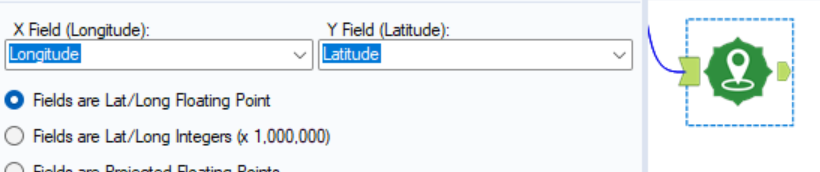
Above you will see the configuration window for the tool, one thing to remember is the data types.
- The points must be an numeric, so use a select tool before hand if needed.
- This will now create a new column named 'Centroid' containing the new spatial point.
Poly-Build
This tool takes individual spatial points and connects them to create a Line or a Polygon. Think of it like a "connect-the-dots" tool for geographic data.
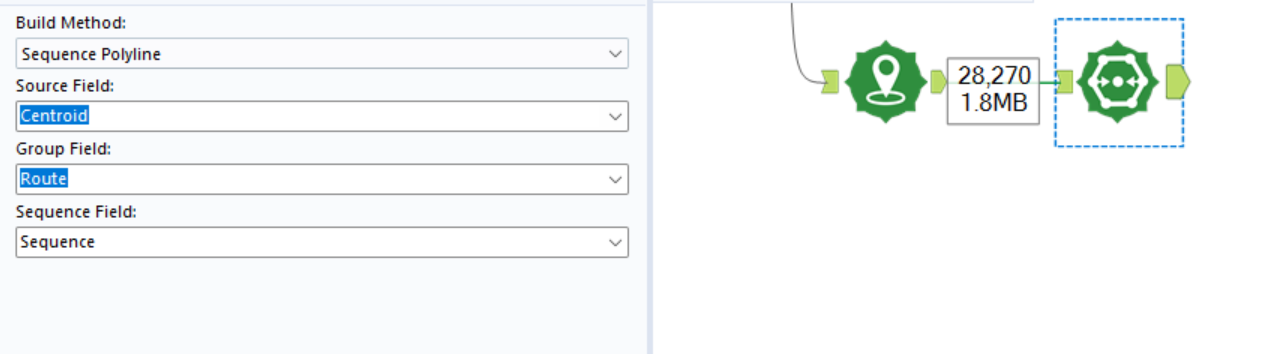
Above you will see the configuration for the tool.
Build Method
- Here you can select what you want to build
- Sequence Polygon
- Sequence Line
- Convex Hull
Source Field
- This is where you are telling Alteryx to take the points from
Group Field
- This is used if you would like to aggregate the data to a specific level.
Sequence Field
- This tells Alteryx what order to connect to the dots in.
The tool will output the line/polygon as a new column.
Spatial Info Tool
The Spatial Info tool extracts the "DNA" of a spatial object. While the Poly-Build tool creates shapes/lines, the Spatial Info tool calculates extra information about them (like how big they are or where they are located).
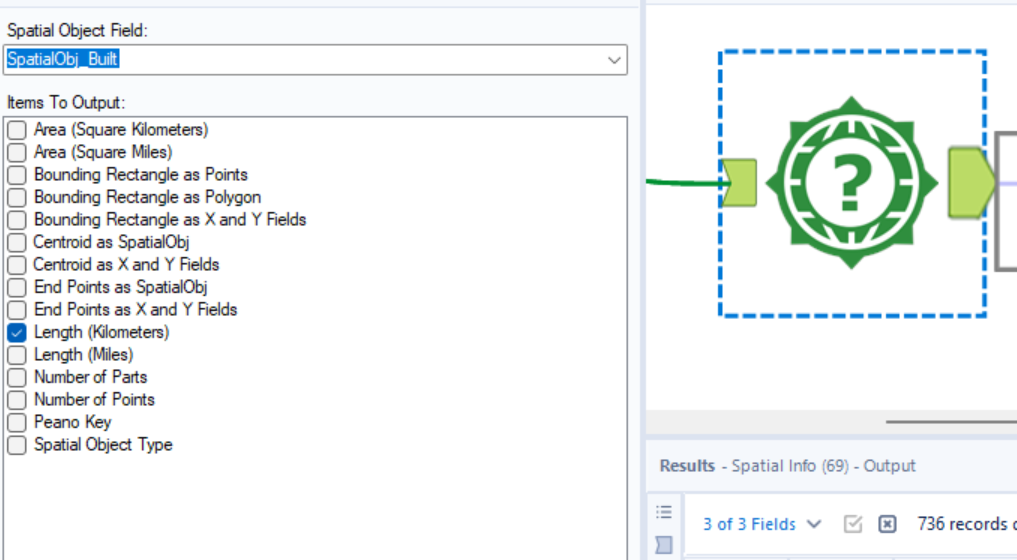
Top 4 Common Extractions
- Area: Calculates the square mileage or square kilometers of a Polygon.
- Centroid: Finds the exact center point ($X, Y$ coordinates) of a shape or line.
- Bounding Box: Identifies the rectangle that perfectly encloses the object (useful for defining map extents).
- Length: Calculates the distance of a Line (e.g., the length of a delivery route).
Spatial Match Tool
The Spatial Match tool is the geographic version of a Join. It compares two sets of spatial objects (Points, Lines, or Polygons) to see how they interact in physical space.
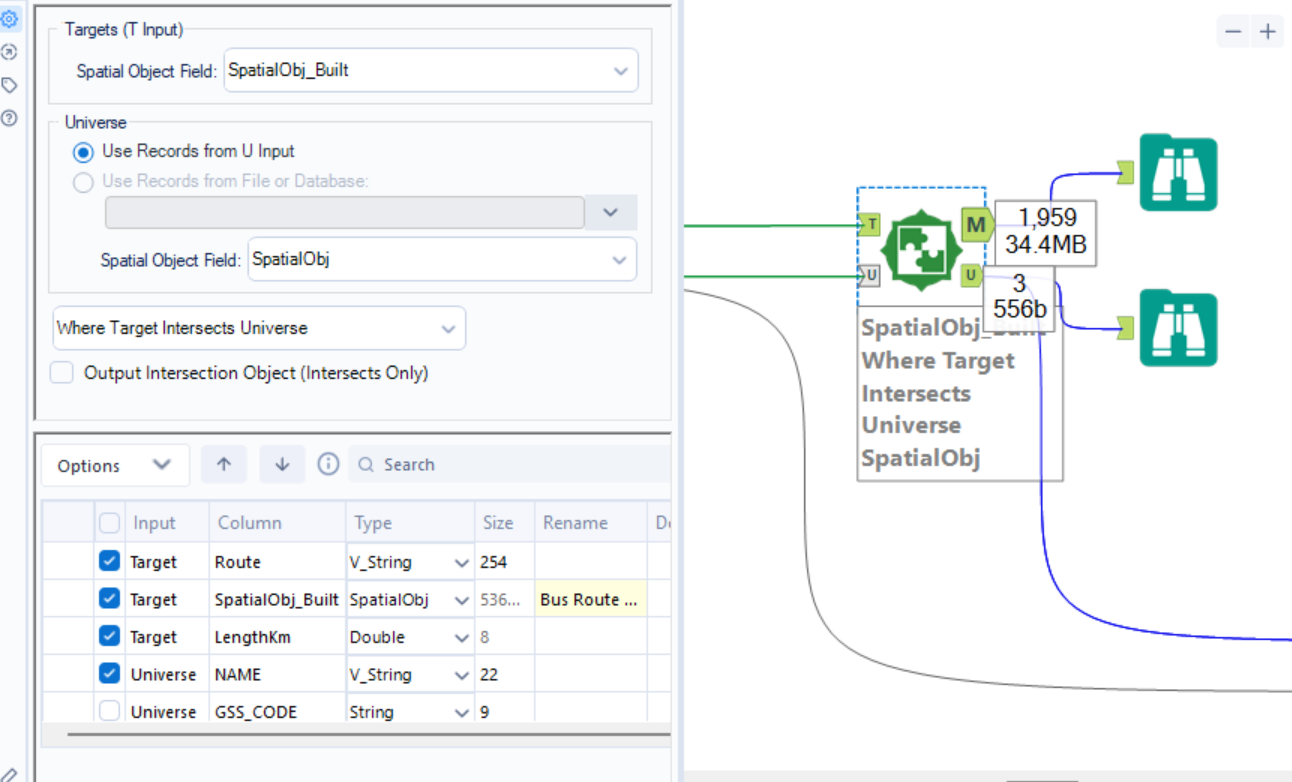
How it Works (The Two Inputs)
- Target (T input): The primary stream of data you want to enrich.
- Universe (U input): The reference dataset you are matching against.
Configuration Options
You must define the Spatial Relationship you are looking for. The most common ones include:
- Where Target Intersects Universe: Does any part of the Target touch the Universe?
- Where Target is Within Universe: Is the Target point or shape completely inside the Universe boundary?
- Where Target Contains Universe: Does your Target polygon swallow the Universe point/shape?
- Where Target Touches Universe: Do the boundaries meet, but not overlap?
The Output Anchors
Unlike a standard Join, the Spatial Match has two specific output anchors:
- M (Matched): Records from the Target that met the spatial criteria. It joins the data from the Universe record to the Target record.
- U (Unmatched): Records from the Target that did not meet the criteria (e.g., a customer who lives outside of all defined delivery zones).
Note: In this tool you are also above to remove fields, so it advisable to remove fields you no longer need to maintain cleanliness of the data.
Find Nearest
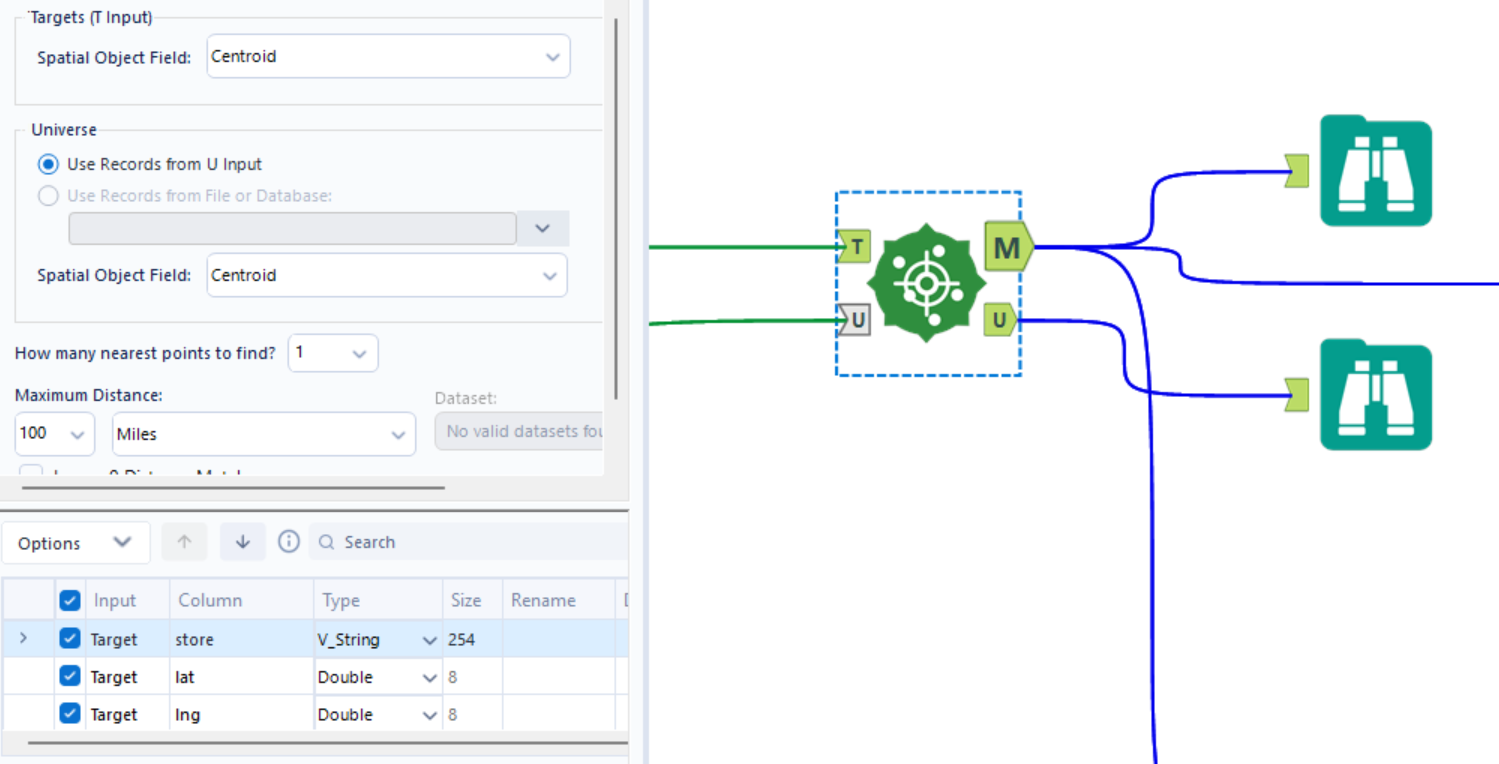
This tool identifies the shortest distance between spatial objects in two different streams. It’s like a Spatial Match, but instead of looking for an intersection, it looks for the closest neighbor.
How it Works
- Targets (T): The objects you want to find matches for (e.g., your Customers).
- Universe (U): The objects you are searching among (e.g., your Store locations).
Configuration Steps
- Select Spatial Objects: Choose the spatial fields for both the Target and Universe.
- How Many Points to Find: Specify how many "nearest" items you want.
- Example: "Find the 1 closest store" or "Find the 3 closest competitors."
- Maximum Distance: Set a cutoff (e.g., "Only find stores within 20 miles"). This prevents Alteryx from searching the entire globe for a match.
- Drive Time (Optional): If you have the GfK/Experian spatial datasets installed, you can find the nearest object based on Drive Time or Drive Distance instead of "as the crow flies" (Straight Line).
The Output Anchors
- M (Matched): The Target records paired with their nearest Universe neighbors. Includes a
Distancefield and aDirectionfield (e.g., NE, SW). - U (Unmatched): Target records that had no Universe objects within the maximum distance you set.
Note: Similarly to the Spatial Match tool you are able to clean up fields in this tool.
Trade Area
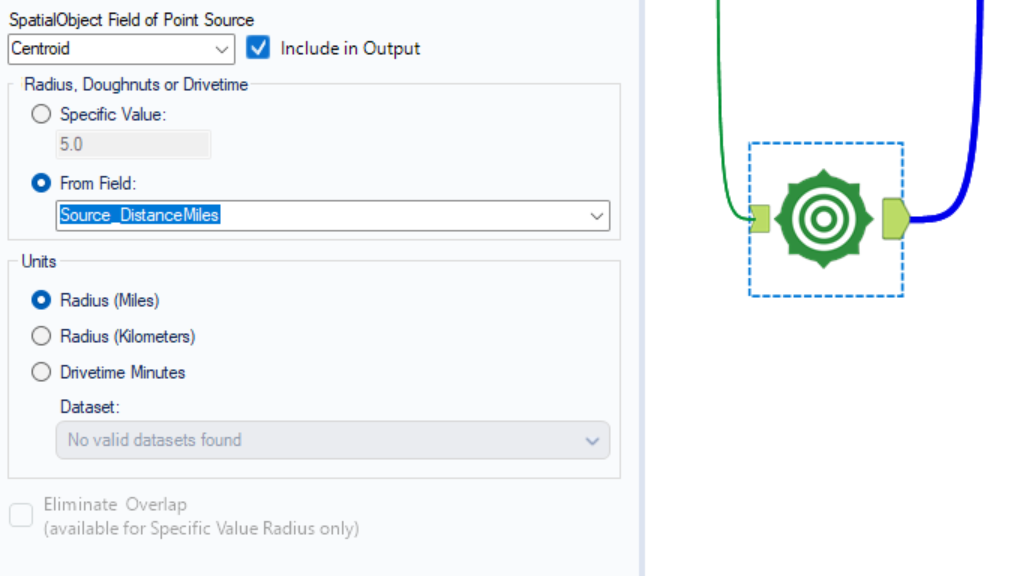
This tool creates a buffer zone around a spatial point. It defines the "reach" of a specific location based on distance or time.
Configuration
SpatialObject Field of Point Source: Here you are able to select the point you would like to create the distance buffer from.
- You can specify the buffer distance yourself or use a field.
Then you are able to choose the units you want your buffer to be measured in.
Poly-Split
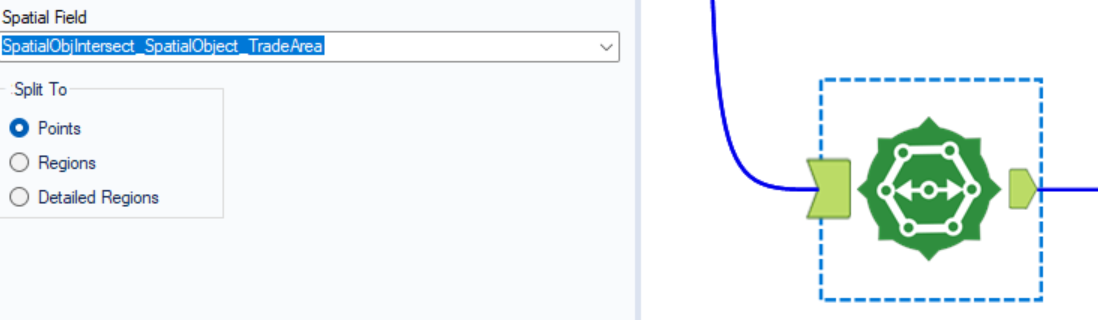
This tool is used to break down complex spatial objects (Lines or Polygons) into their individual component Points.
Configuration
Spatial Field - Choose the Line or Polygon field you want to deconstruct.
Then you're able to choose what you want to split the field into.
Spatial Process
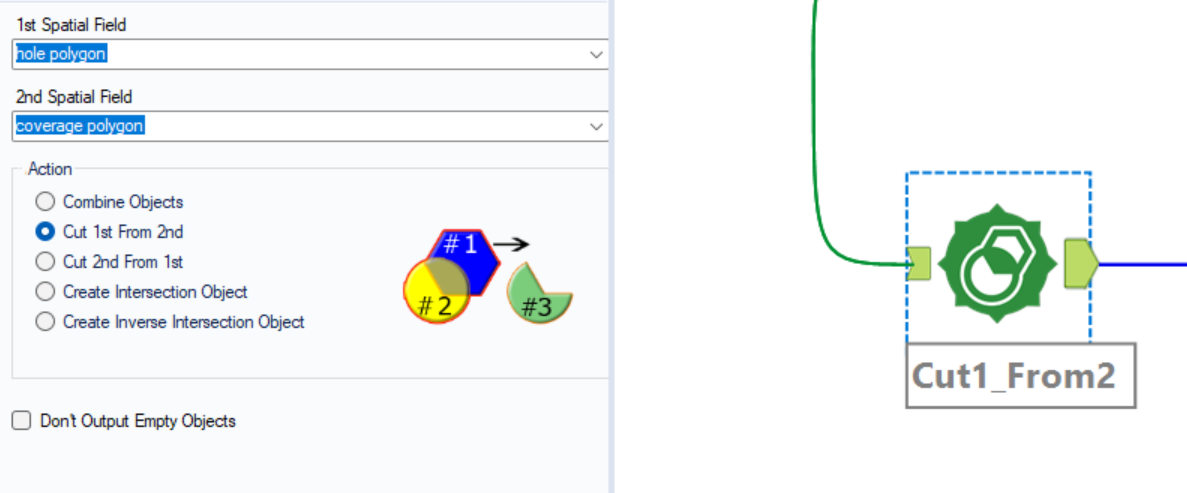
This tool is used to perform "geometric surgery" on two spatial objects. It allows you to combine, cut, or compare two shapes to create a third, new shape.
Configuration
You select 2 fields.
The 4 Main Operations
- Combine (Union): Merges two shapes into one large, single object.
- Cut (Area 1 - Area 2): Uses the second shape like a cookie cutter to remove a chunk from the first shape.
- Cut (Area 2 - Area 1): The reverse of the above—removes the first shape from the second.
- Intersection: Keeps only the area where the two shapes overlap (the "middle" of the Venn diagram).
To help you visualise what you need you can select the option and a diagram will appear.
Data Structure
Both spatial objects must be in the same row of data. If your shapes are in different rows, use a Join or Append Fields tool first to get them side-by-side.
Summary Table:
Practice Makes Perfect!
Alteryx
- Alteryx Weekly Challenge 408 - Create points, Spatial Match
- AWC 287 - Create points, Distance
- AWC133 - Find Nearest, Poly-build
Happy building 😸