


When creating your first repository (repo) in you should always add a .gitignore.
This is a file which tells Git which files/ folders should be ignored with respect to tracking and publishing to the repo. If a file is tracked, it means Git it checking for any modifications and will include it in the next commit which results in it being visible in your repo.
Files you typically want to hide are virtual environments you have created (.venv - these can be big and project requirements can be listed in a requirements.txt), anything containing a password or key (.env), and potentially any raw data.
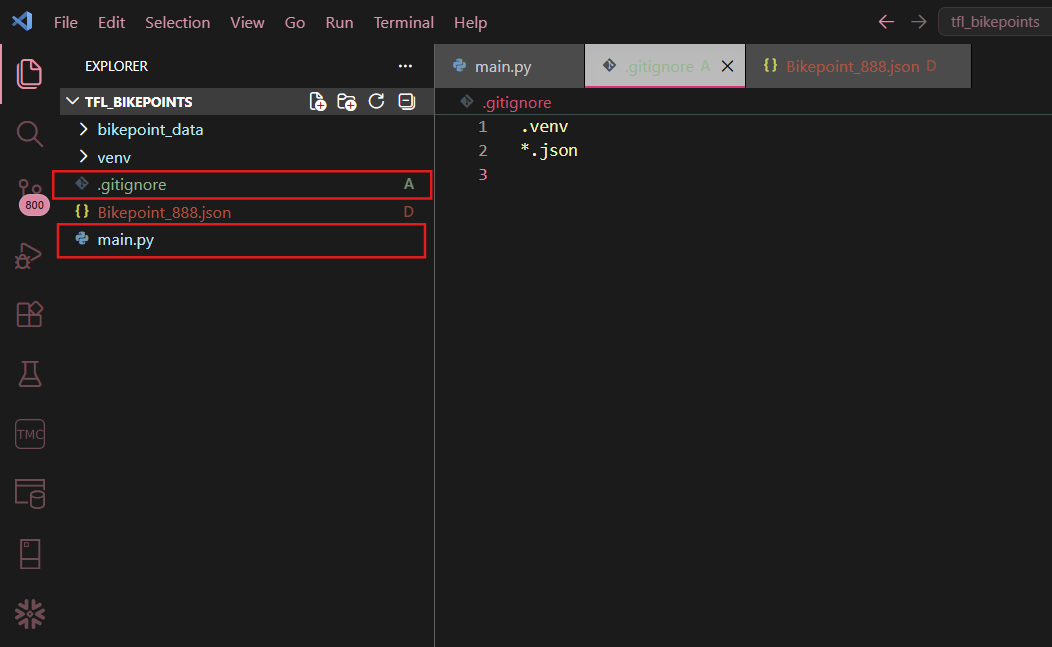
The .gitignore should be found in the parent folder, so the conditions listed will apply to the entire project, including subfolders.
To create a .gitignore:
1. Create a new file called .gitignore in the root folder
2. Open the file and list exactly what you would like to hide:
* To hide a specific file: file_name.file_type
* To hide a subfolder: folder_name/
* To hide a specific file type (this example is for json files): *.json
* To hide anything with a specific name: *specific_name*
Note: The * acts as a wildcard and will look for anything before and after the text written.
- In VS Code, check that files are greyed out - these will become 'ghost files' and will successfully not be tracked by Git or end up in your repo
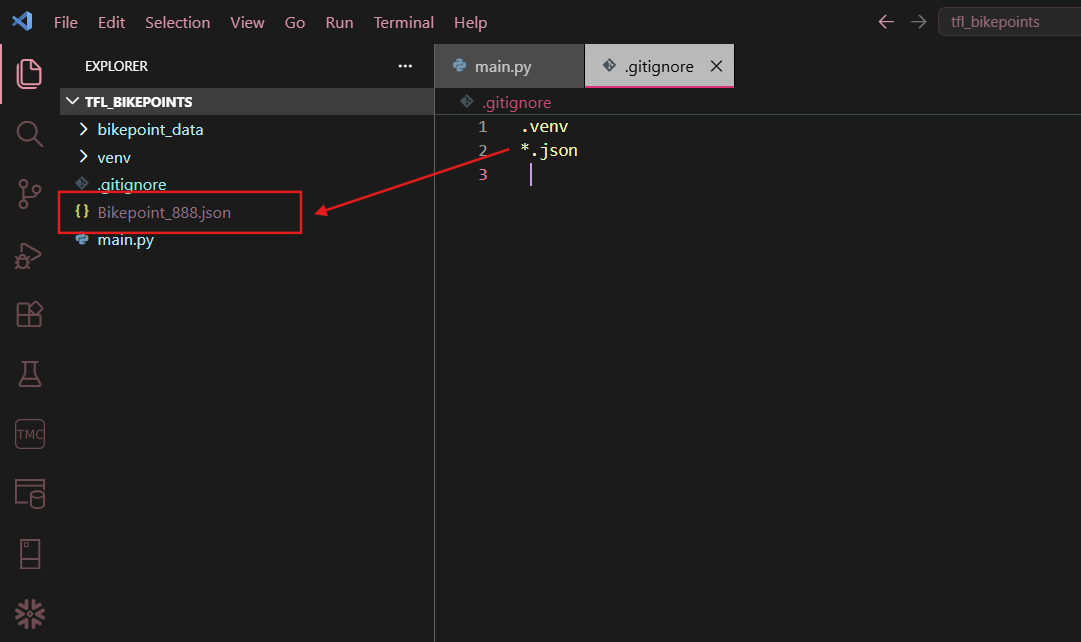
What if you forgot .gitignore? Or changed your mind about which files you want tracked and published? Don't panic!
1. Create a .gitignore file following the instructions above
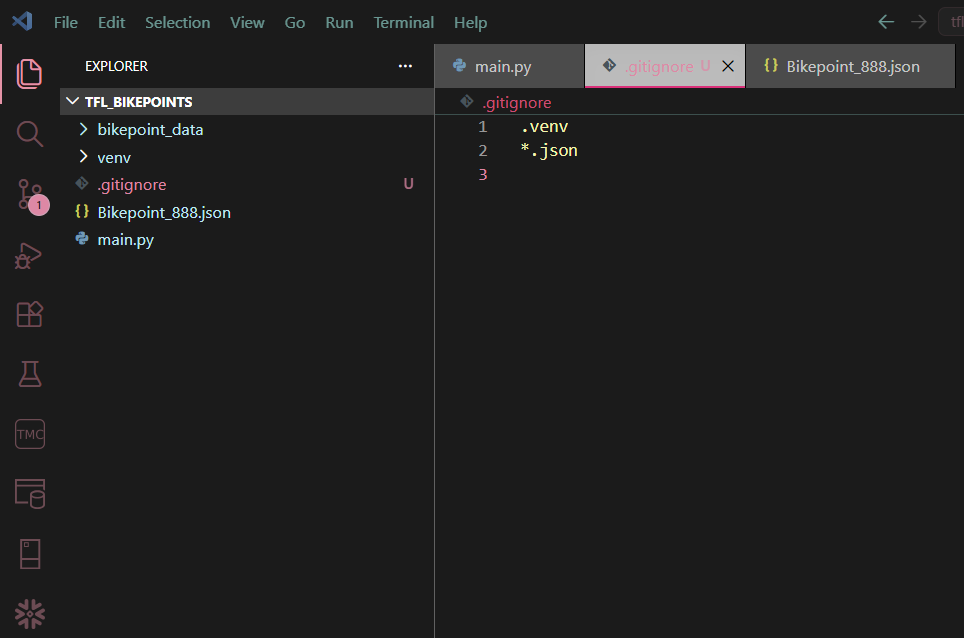
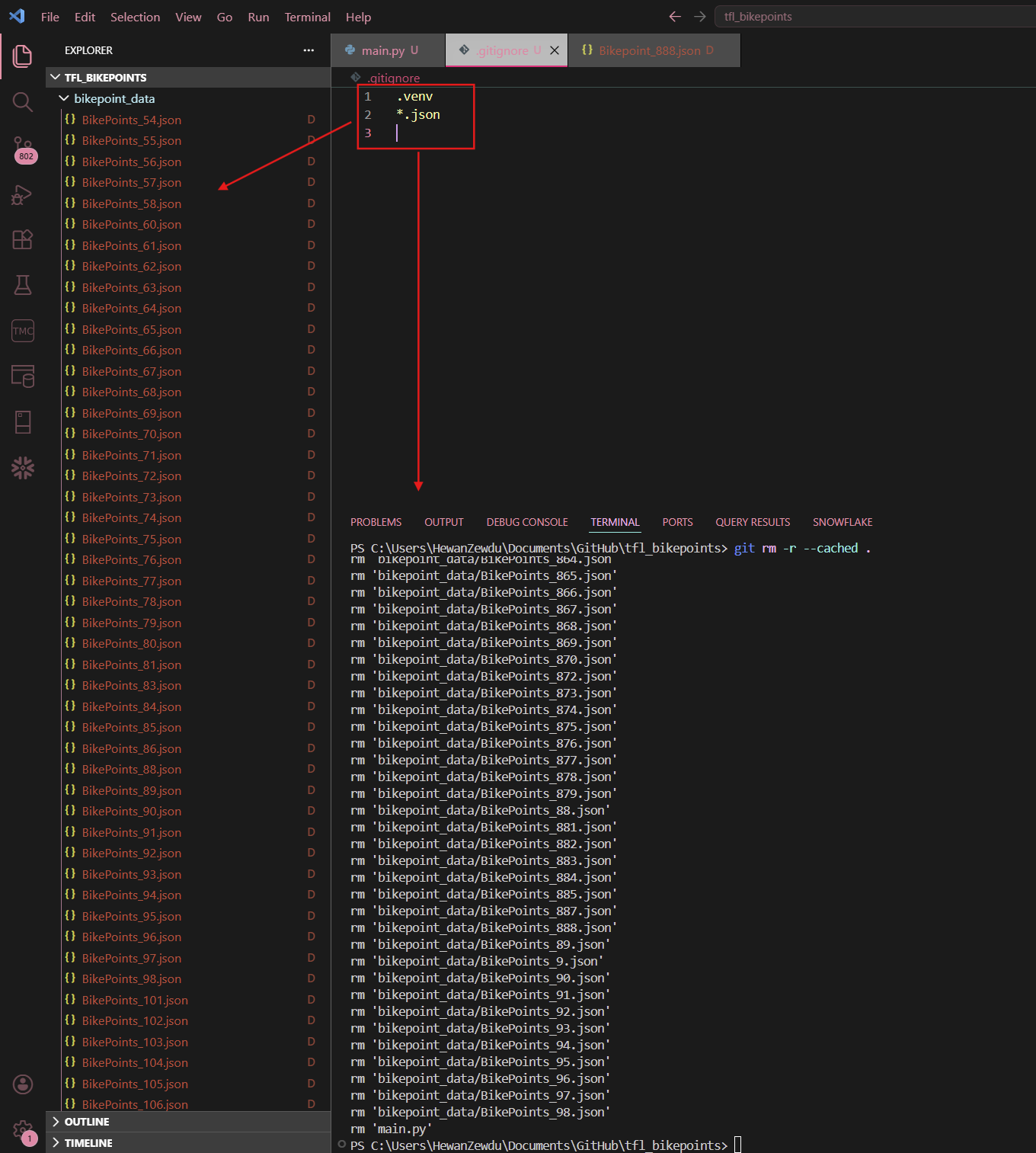
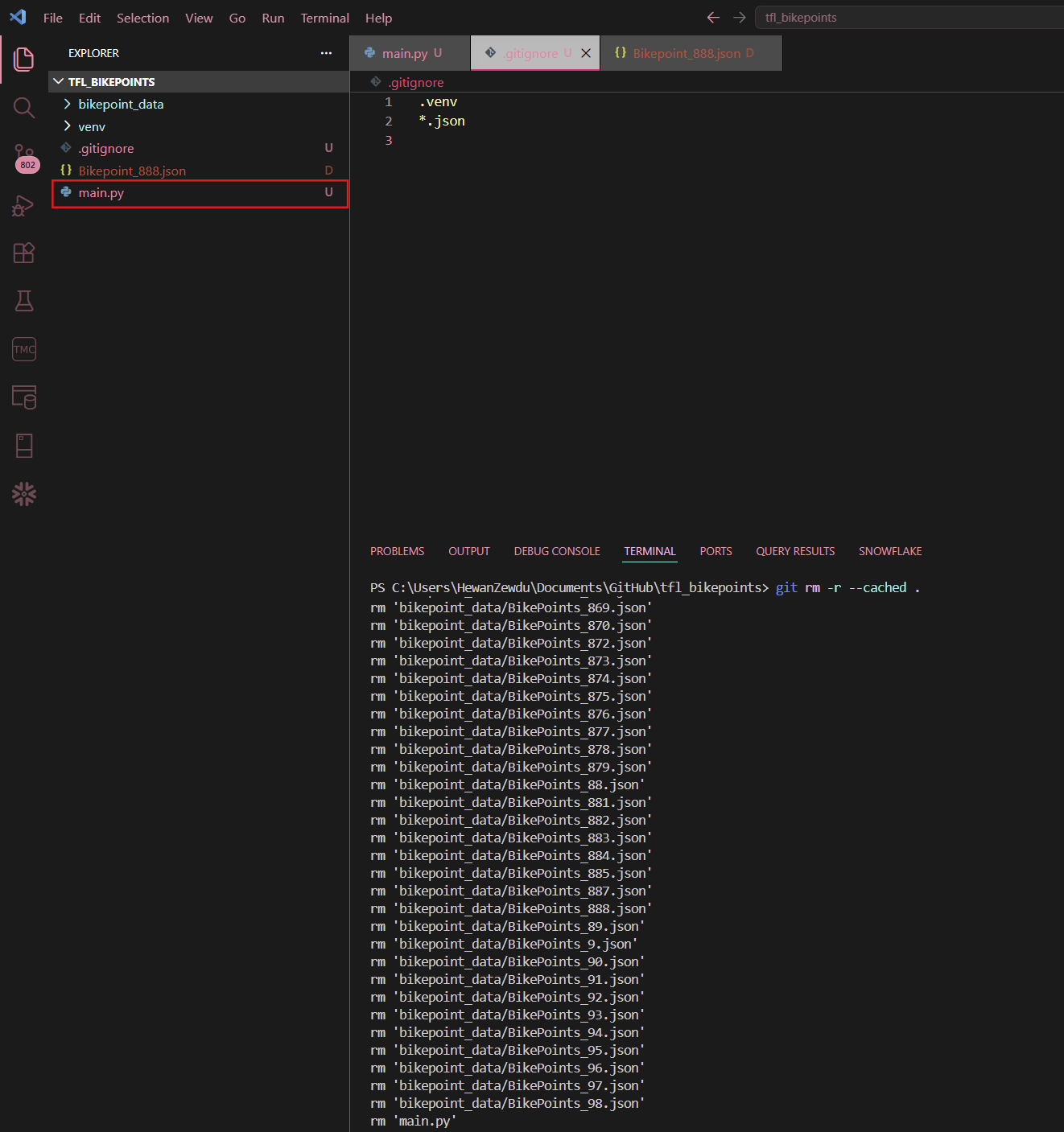
2. In the terminal write git rm -r --cached .
This stops Git tracking all files and removes them from its internal tracking, but keeps everything in your local folder on desktop - the files themselves will not be lost or deleted!
We have to do this because once Git has started tracking a file (and it's ended up in your repo) it won't stop until we do this step. By doing this we are clearing Git's memory for a fresh start!
- 3. In the terminal write
git add .
This adds everything back into staging, and now will take into consideration what you have chosen to ignore as specified in your .gitignore
- 4. In the terminal write
git commit -m "Stop tracking ignored files"
This creates a commit in Git ahead of a push - you can edit the commit message to whatever you would like.
- 5. In the terminal write
git push origin main
This pushes your changes to Git, and you should be able to see it in remote/ your online GitHub repo.
If you are working with collaborators, its best to include origin in your push command to make sure you are pushing to your repo/branch instead of pushing upstream, unless you're ready to share your changes with the rest of the team.
To check exactly where to push to, you can use git remote -v
- 6. If you have accidentally published a .env file or any passwords it is important to rotate (change) them immediately! Even if they are deleted from GitHub it is still visible in the commit history - any published password is public knowledge until it has been changed at the source!