


Use case: A column in your table contains multiple items, but you want those items to be in their own columns.
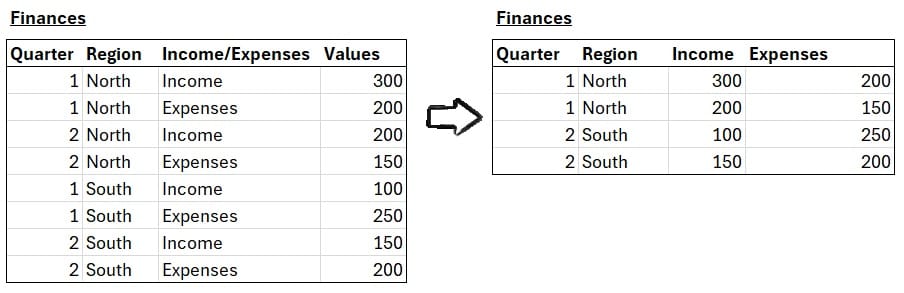
What do we use? A Row to Columns pivot.
*Also known as "Cross Tab" in Alteryx or "Pivot" in PowerQuery.
Pivot between "Long" or "Wide"
You may run into data stored in a "Long" table, which use fewer columns but many rows to describe each item.
"Long" tables are used as they're generally machine-readable, but they're not always what an analyst needs.
Row to Column pivots turn "Long" tables into "Wide" tables: a table with more columns and fewer rows.
When is this useful?
- Sorting out a column that contains too many categories of data - especially if this column has different data types (image below).
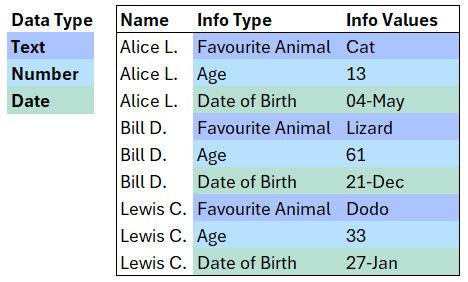
- You might need data to be in a specific format. E.g. when preparing data for a Join or a Union across multiple tables or a calculation.
- When you want to make a table more human-readable (for a report or presentation etc.).
How to do a Row to Columns pivot?
The steps below work for any data preparation tool you're working with (Tableau Prep, PowerQuery, Alteryx).
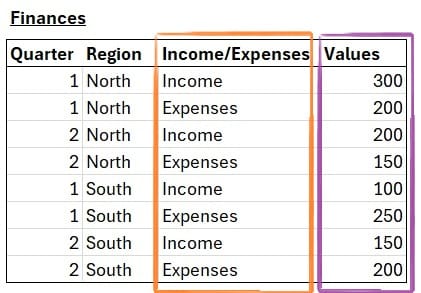
To set up a Row To Columns pivot, we need two key parts:
- The column to pivot.
- The values that fill the pivoted columns. These will be aggregated (SUM, AVG etc.) where applicable.
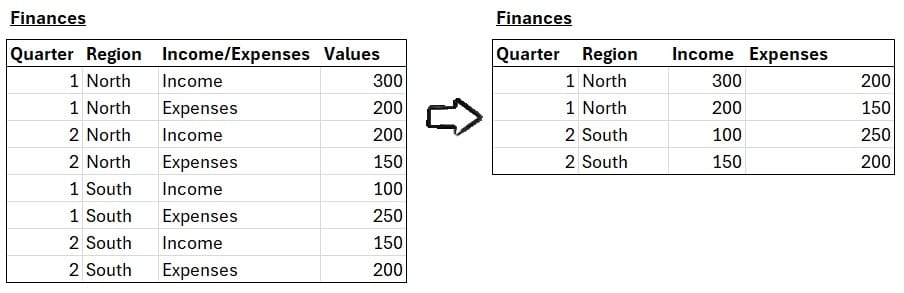
In the above example, we want to separate columns for each Income/Expenses and while making sure we can see the Sales.
The two parts of our Row To Columns pivot would be
- The column to pivot: Income/Expenses
- The values that fill the pivoted columns: Sales
The pivot will rearrange the table so each item in Income/Expenses becomes its own column.
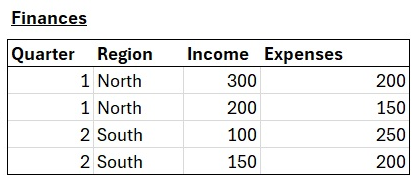
That's all you need! To get data back into a Long shape, try a Column to Row Pivot.