


This week we’ve been working on a client project where multiple data sources were blended to build a single dashboard. This required creating multiple calculated fields in one data source and then copying them into sheets connected to other data sources.
What I love about our instructor Val, among other things, is her demonstration of pure Tableau magic. For something we are struggling with, she has a one-click solution. And if some functionality is not native to Tableau, she knows a workaround.
For this project she taught me to create multiple calculated fields from one Calculation Editor. Here's how:
- Write all of your calculations in a separate text document (remember to give each of them descriptive names), and copy everything.
- In your Tableau workbook, create a new calculated field, paste all your calculations with their respective name headers as separate lines. Put // before each name header.
- Select the text of your first calculation, drag and drop it into the Data pane. You will see a rectangle indicating the creation of a new calculated field appear. Let go of the selected text. A new calculated field is created.
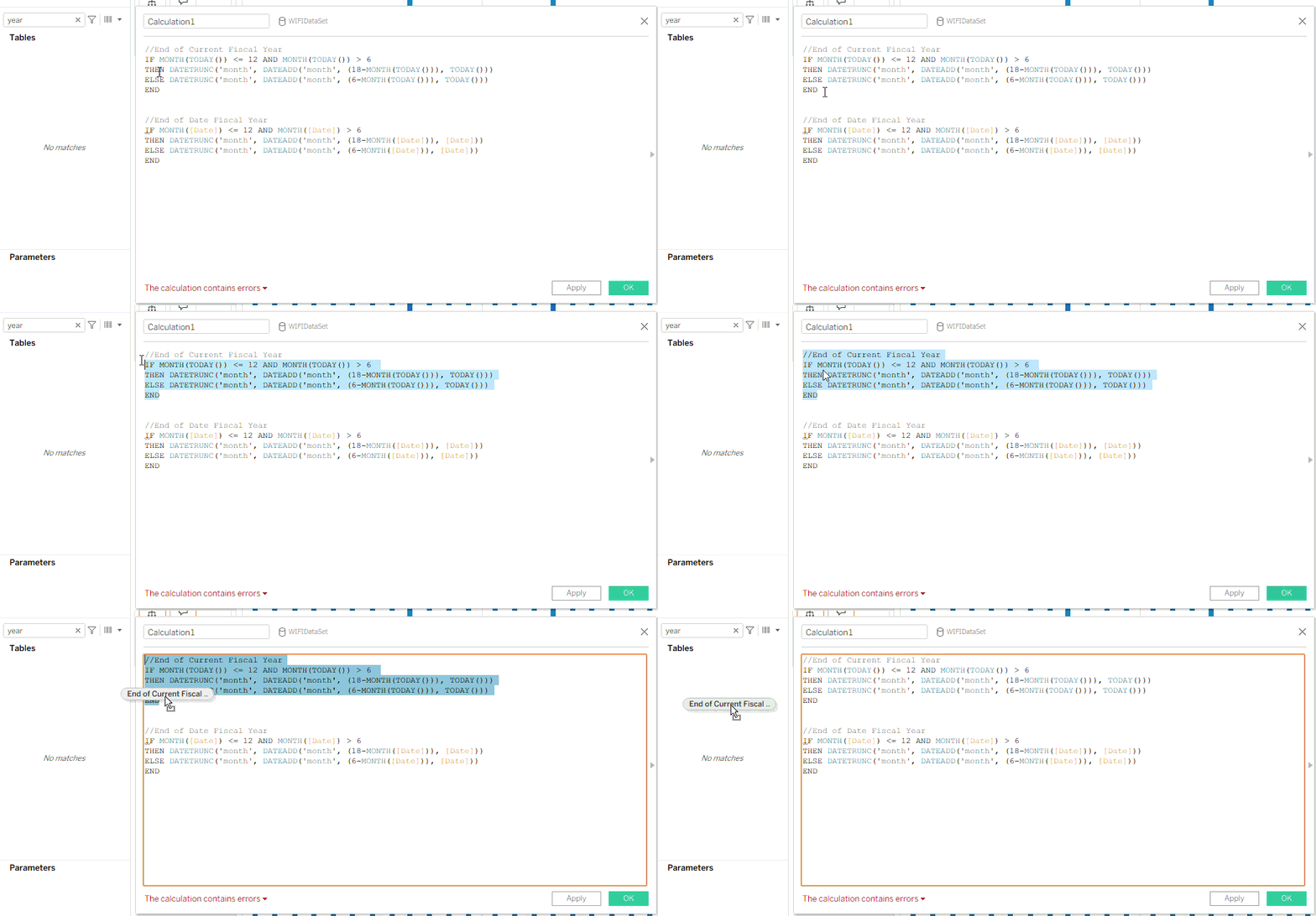
You still have the Calculation Editor open, delete the text of the calculation you just created, highlight and select your next calculation, drag and drop it into the Data pane when the rectangle appears.
When you’re done with all calculations on a given worksheet, go straight to the next sheet, the Calculation Editor will follow.
If you have many calculations and want to validate that all calculations are transferred, go to the Data pane, search for the Calculated Field names you are creating and watch each new calculated field appear in the Data pane as you drag and drop.
Rinse and repeat.