


I used this concept in this dashboard.
Step 1: Make a Vertical Container
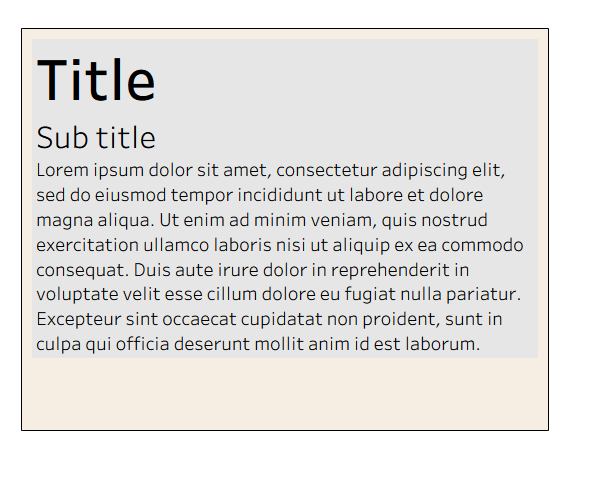
Step 2: Put your desired text in a text box and drag into the vertical container
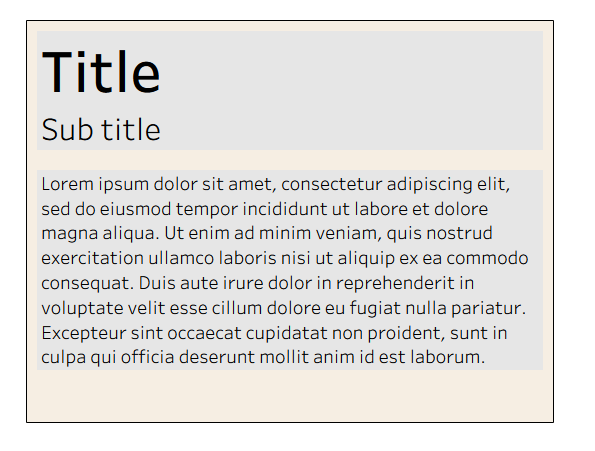
Step 3: Add another text box

Step 4: Move text you want to hide into your second text box
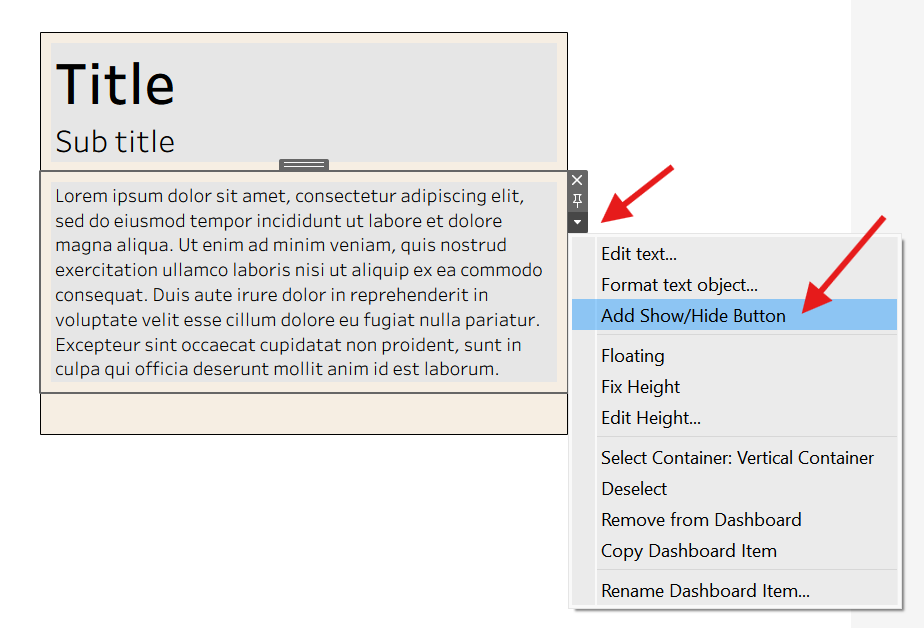
Step 4: Select the text box you want to hide, then click on "Add Show/Hide Button"
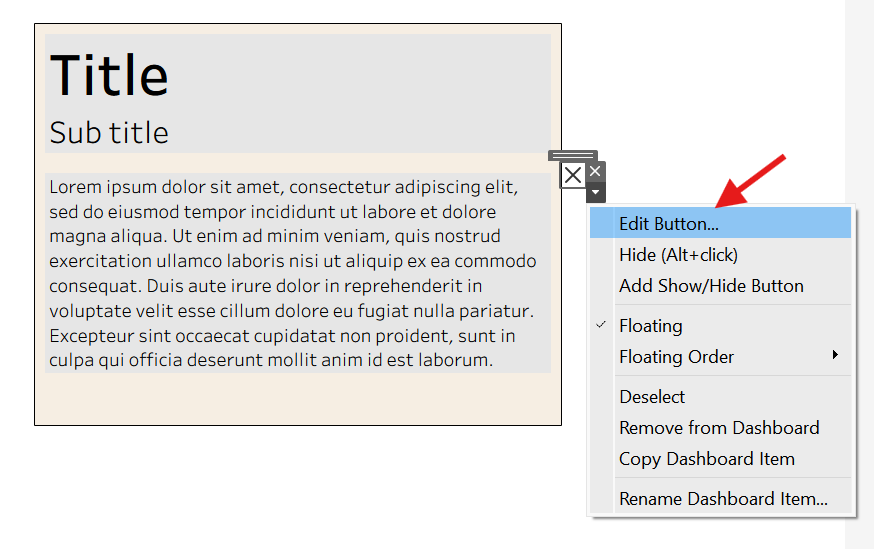
Step 5: Select the button that appeared and click on "Edit Button"
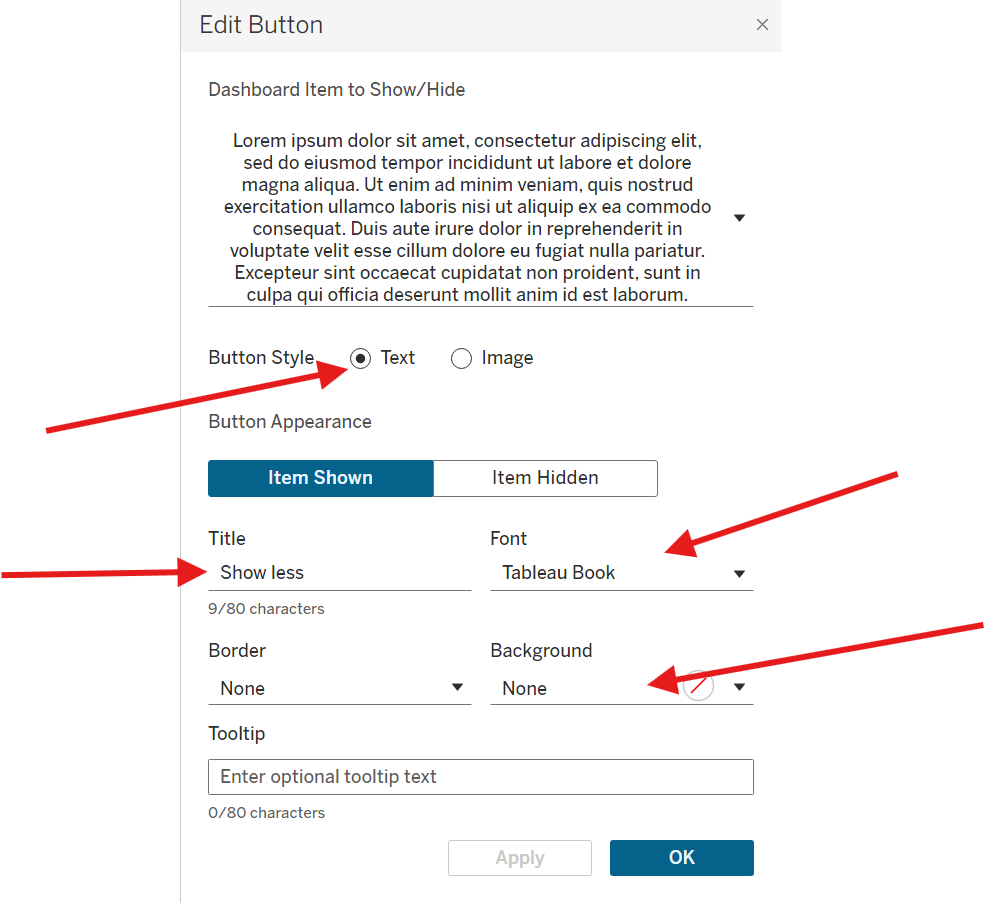
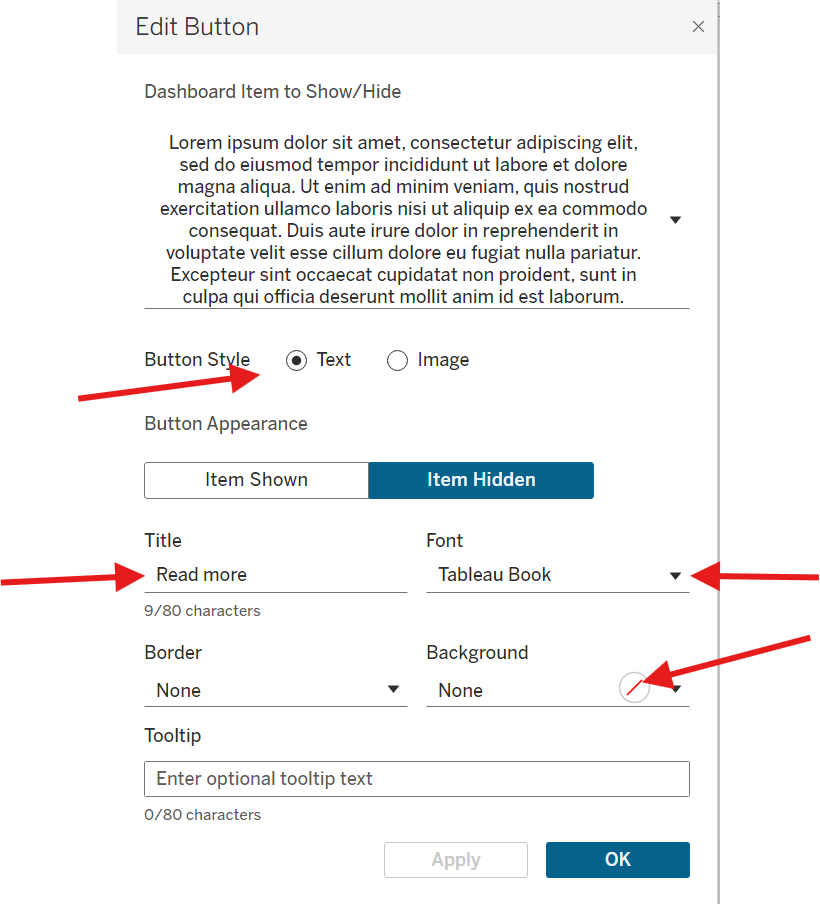
Step 6: Set options as shown below (change font to be same as the text you want to hide)
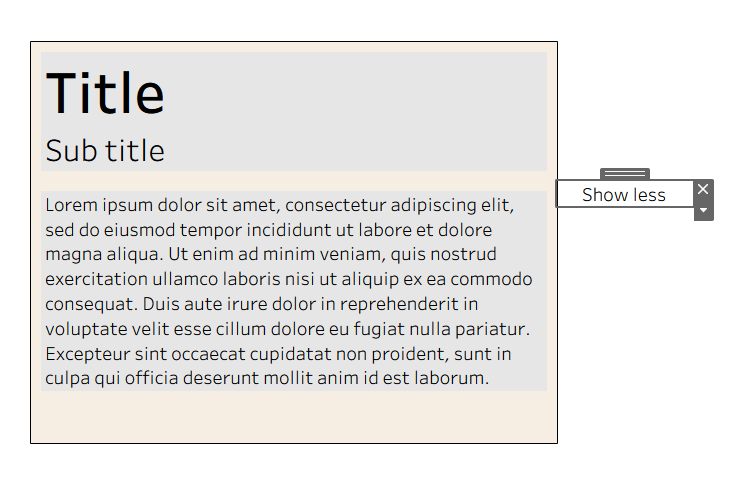
Step 7: Change size of the button so that the text shows
Step 8: Hold shift and drag it into the bottom of the vertical container
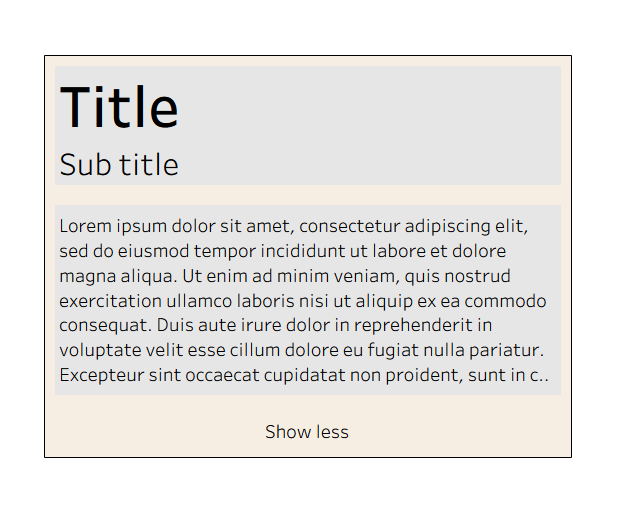
Step 9: Add a Horizontal container above the button (shown in blue)
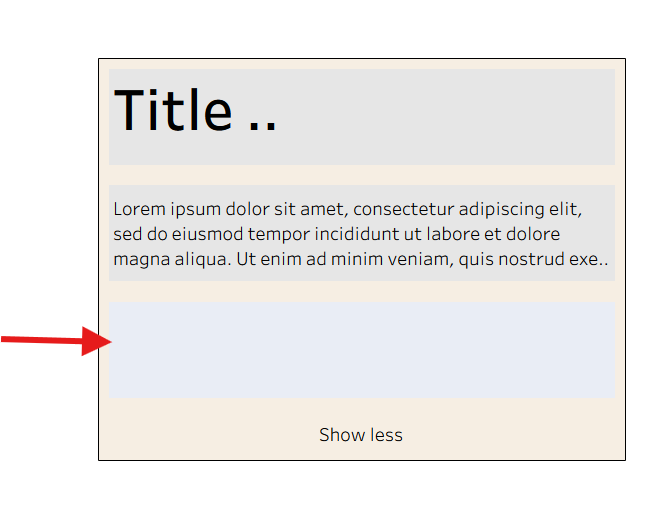
Step 10: Drag the button into the horizontal container and add a blank to the right side of it
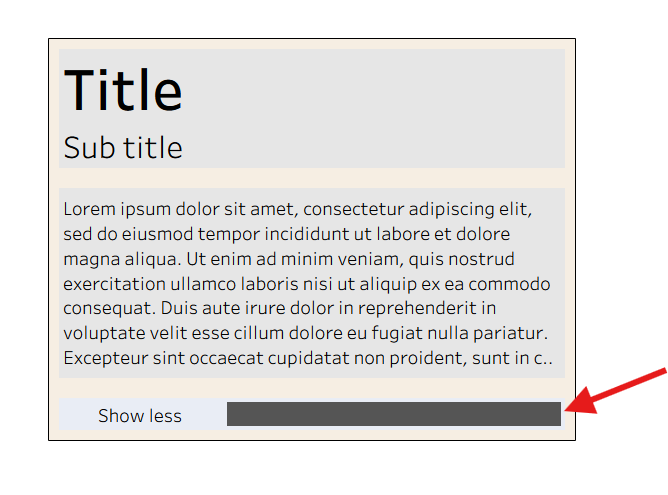
You can play around with the width and padding of the button to get the alignment to your liking, and if the background colors are removed it should look like this:
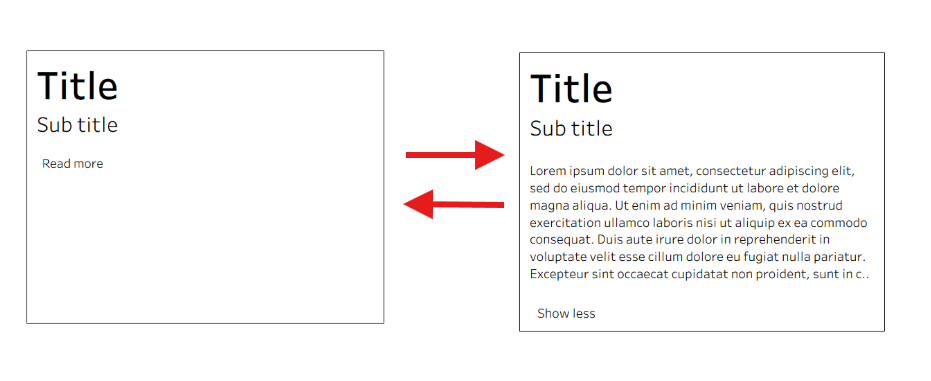
This way, you can hide lengthy texts and additional information, and only populate them once you need them.
Additional Tip: If text is always centering in your text box, you can change the alignment by selecting the text box -> Format Text Object-> Alignment.